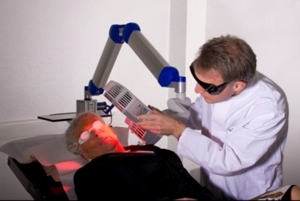
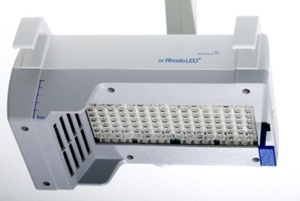
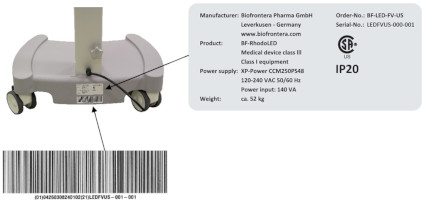
The illumination area of the LED lamp is 8 x 18 cm. As the intensity decreases towards the edge of this area, the effective treatment area is reduced to 6 x 16 cm.
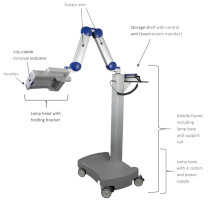
- Lamp head with holding bracket
- Scissor arm
- Storage shelf with control unit (touchscreen monitor)
- Mobile frame and lamp base (include support rail, castors and power supply)
Figure 3: BF-RhodoLED® main components. (The appearance of devices from batches 001 to 003 slightly differs.)
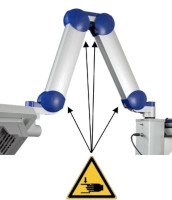
The swivel range to the left and right of the vertical rail is +/- 24°. The lamp head can be adjusted horizontally and vertically and tilted sideways. The scissor arm with internal gas springs allows seamless adjustment of the lamp head to any position.
5 Eye Protection
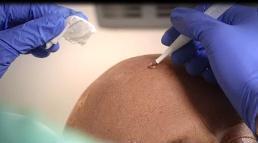
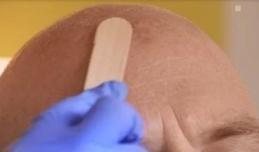
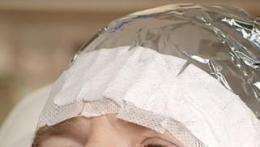
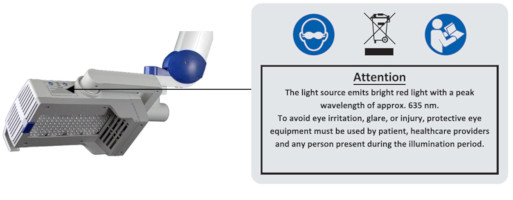
In order to avoid eye irritation, glare or injury, protective eye equipment must be used by patient, healthcare providers and any person present during the illumination period. Do not stare into the light source! The operator and other persons present must wear protective glasses with a visible light transmission (VLT) of approximately 10%. The patient must wear eye protection such as disposable eye protection pads or eye caps with an optical density for visible light of 6 or higher. Both options are effective and comfortable for use during treatment.
Note: Eyewear is not part of the medical device. Please carefully read any accompanying usage information before using any eye protection.
| In order to avoid eye irritation, glare or injury, protective eye equipment must be used by patient, healthcare providers and any person present during the illumination period. |
6 BF-RhodoLED® PDT Summarized Step-by-Step Instructions
These instructions should be used in conjunction with detailed operating instructions below (chapter 7). The section titles and numbers listed next to the instruction refer to the detailed instructions and/or descriptions that correspond with each step.
Note: Every user of the BF-RhodoLED has to be trained in operating the device. The initial training is provided by Biofrontera during set-up of the BF-RhodoLED. Recurrent training is not mandatory but can be provided by Biofrontera employees. Before treating a patient with Ameluz, please ensure that BF-RhodoLED is in good working order.
| STEP 1) | Plug in lamp. |
| STEP 2) | Turn on the lamp and wait for home screen to appear (see chapter 7.3). |
| STEP 3) | Check the proper functioning of the BF-RhodoLED®. |
| STEP 4) | Treat the affected skin area: Application, incubation and removal of the topical medication following the USPI of Ameluz®. |
| STEP 5) | Position patient comfortably and place protective eyewear on patient (see chapter 5). |
| STEP 6) | Position the lamp and adjust the lamp head over the skin area to be treated (distance 5-8 cm) (see chapter 7.5.1). |
| STEP 7) | Put on protective eyewear and make sure anyone remaining in the treatment room also wears protective eyewear (see chapter 5). |
| STEP 8) | Start treatment by pressing "Treatment" on the home screen, press "Start" on the treatment screen, and press "Start" once again in the profile screen. The illumination period of 10 minutes begins (see chapter 7.5.3).
Remind the patient to remain still throughout the illumination period.
If sound tone during treatment is activated, explain the beep sequence to the patient.
If the patient needs a break, press "Break" on the profile standard screen. To resume treatment, press "Start" on the profile standard screen (see chapter 7.5.3).
To abort the illumination, press "Stop" on the profile standard screen.
Adjust fan speed as needed by patient by pressing plus or minus 1% or 10% on the profile standard screen.
Stay with the patient at all times during the illumination period. |
| STEP 9) | At the end of the illumination period, remove patient´s protective eyewear and follow further instructions in the Ameluz® USPI. |
7 Detailed Operating Instructions
Note: Every user of the BF-RhodoLED has to be trained in operating the device. The initial training is provided by Biofrontera during set-up of the BF-RhodoLED. Recurrent training is not mandatory but can be provided by Biofrontera employees. The device must be protected against unauthorized use.
| In order to avoid eye irritation, glare or injury, protective eye equipment must be used by patient, healthcare providers and any person present during the illumination period. |
7.1 Transport of the lamp
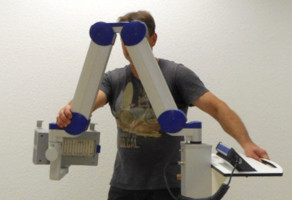
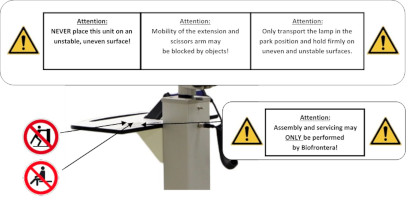
The transportation of the lamp shall be done when the scissor arm is completely folded. During transportation one hand shall hold on to the support rail or storage shelf while the other hand holds the scissor arm (Figure 4).
Figure 4: Transport of the lamp. (The appearance of devices from batches 001 to 003 slightly differs.)
7.2 Movement area of the scissor arm and the lamp head
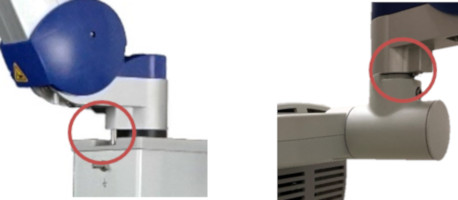
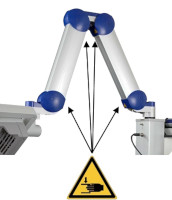
The scissor arm has a swivel range of +/- 24 degrees to the left and right. The swivel range is limited by a pin at the connection between scissor arm/ support rail and scissor arm/ lamp head (Figure 5).
The lamp head can be adjusted horizontally and vertically and tilted sideways, as it has a swivel range of +/- 90 degrees in all three dimensions.
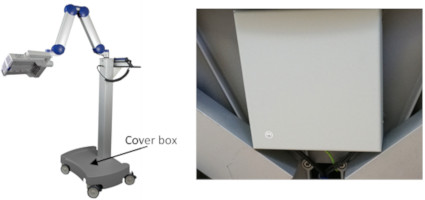
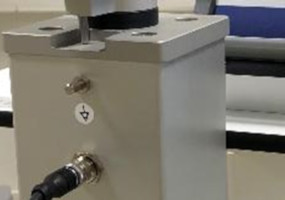
Figure 5: Limiting pins of the scissor arm and the lamp head. (The appearance of devices from batches 001 to 003 slightly differs. Appearance and location of the labels remain unaltered.)
7.3 Turning the Lamp On or Off
Note: Before turning on the lamp, the power cord must be plugged in. After connecting, the lamp can be turned on and used following the instructions below.
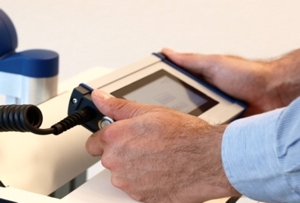
The on-off switch is located on the left side of the touchscreen monitor, close to its spiral cord. With the lamp plugged in, press the button to start the device.
Important: This push button can also be used to turn the lamp off. Switching off the lamp can also be done by pressing the switch off
button on the touchscreen (see chapter 7.4.2 "Home Screen").Figure 6: Touchscreen monitor
7.4 Touchscreen Monitor and Menu
When using the touchscreen, please firmly press the center of the buttons shown on the screen to ensure it is read correctly by the software. Do not press too quickly, the input may not be read by the software. The touchscreen can be used while wearing commercially available examination gloves.
7.4.1 Start Screen
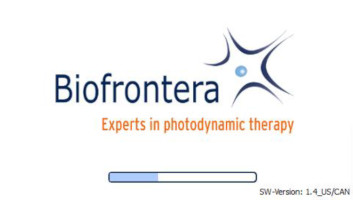
The Biofrontera corporate logo and software version are displayed during the LED lamp operating system start-up (Figure 7). The operating system takes approximately 30 seconds to load.
Figure 7: Start screen
7.4.2 Home Screen
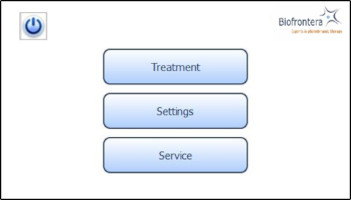
The home screen appears after the operating system has loaded. From the home screen you can select "Treatment", "Settings" or "Service" (Figure 8). In the "Treatment" menu only one treatment profile "profile standard" is available. The illumination time and light intensity of this program are fixed (see 7.5.2 for further information). The "Settings" menu allows adjustment of language, time, date, audio signals and power saving settings (see 7.6 for further information). The "Service" menu may only be accessed by authorized personnel. You can turn the LED lamp off by pressing the
button.Figure 8: Home screen
7.5 Conducting a Treatment
Prior to treating a patient with Ameluz please ensure that BF-RhodoLED is in good working order. Before starting a treatment, make sure the lamp is set-up in accordance with the operating instructions described in the following sections.
7.5.1 Distance Indicator
Position the lamp head over the skin area to be treated at a distance of 5-8 cm. Use the adjustable distance indicator and graduated scale bar to help measure and aid in achieving the correct distance (Figure 9).
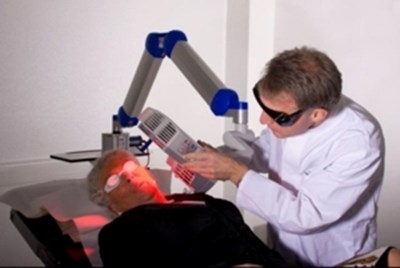
Figure 09a (Um Figure 09a)
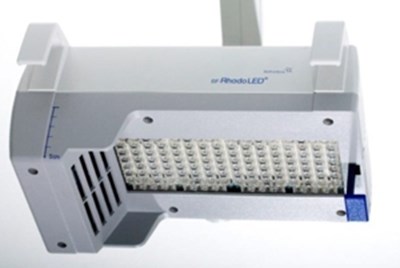
Figure 09b (Um Figure 09b)
Figure 9: Positioning of the lamp head to the treated skin area
7.5.2 Adjustment Light
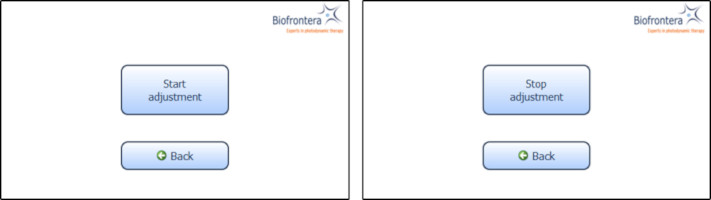
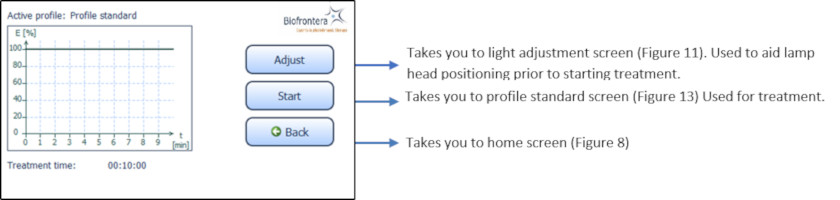
To further aid positioning, use the adjustment light. On the touchscreen, press the following buttons in sequence (starting in the home screen): "Treatment" (Figure 8), "Adjust" (Figure 11) and "Start Adjustment" (Figure 12). The adjustment light shows what the field of illumination will be during treatment but at a lower intensity (6x16 cm, approx. 2.4 x 6.3 inches). When finished, press "Stop adjustment" and then "Back" (Figure 11) to return to the treatment menu (Figure 10).
Figure 10: Treatment menu
Figure 11: Start and Stop adjustment
7.5.3 Treatment Menu
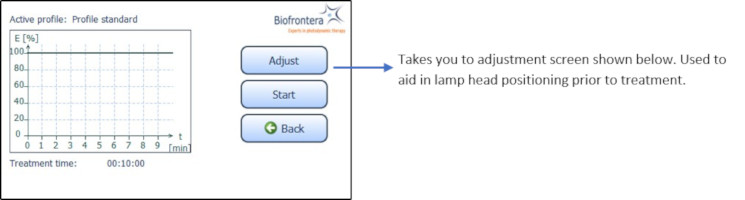
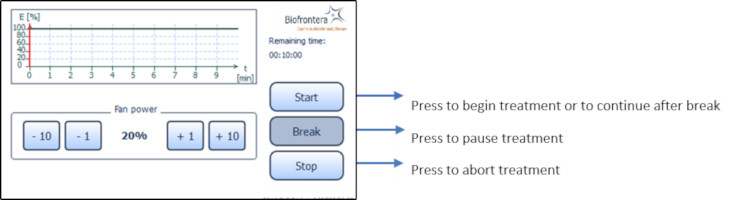
Press treatment to enter the treatment menu (Figure 8). The standard illumination profile is depicted in a graph in the treatment menu. The x- and y-axis specify the treatment duration and light intensity respectively (Figure 12).
Figure 12: Treatment menu
In the treatment menu (Figure 12), press the "Start" button to access the profile standard screen.
7.5.4 Profile Standard Menu
In the profile screen menu, press "Start" to begin treatment (Figure 13). You can interrupt the treatment at any time by pressing the "Break" button. Press the "Start" button to resume the treatment. Abort the current treatment by pressing the "Stop" button.
If you press "Stop" prior to the end of the total treatment time, 10 minutes, the clock will reset and any interim treatment time will be not be saved.
After pressing "Stop" or upon completion of the full 10 minute treatment the software will automatically return you to the treatment menu.
The remaining treatment time is displayed to the right of the graph and the red vertical line within the graph indicates the time that has elapsed.
Figure 13: Profile standard
7.5.5 Audio Signals during Treatment
During treatment the patient will hear audio signals, 1 beep indicating 25 %, 2 beeps indicating 50 % and 3 beeps indicating 75 % of the PDT is completed, and upon treatment completion the lamp will stop the illumination and 4 beeps will be heard (see also chapter 7.6.2).
7.5.6 Patient fan
You can control the speed of the patient fan both before and during treatment with the plus and minus buttons, in increments of 1 % or 10 %. The patient fan continues to run when the treatment is paused ("Break"). The fan can be stopped by pressing "Stop" but be aware the treatment will also be aborted and any elapsed treatment time will not be saved.
7.6 Settings Menu
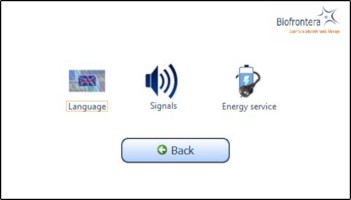
The settings menu is invoked (Figure 14) by pressing the "Settings" button in the home screen view (see Figure 12).
Figure 14: Settings menu
You can configure the following parameters in this menu:
- Language
- Signals
- Energy service (Power management)
Switch back to the home screen menu via the "Back" button.
7.6.1 Language Settings
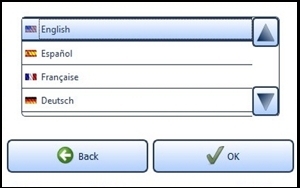
Select a language by tapping on the desired language. Use the arrow keys to scroll through the list. Confirm the selected language with the "OK" button (Figure 15). Switch back to the settings menu without saving changes by pressing the "Back" button instead of "OK".
Figure 15: Language setting
7.6.2 Sound Settings
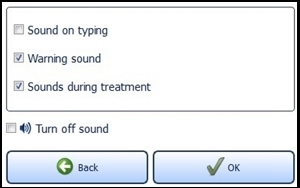
Activate and deactivate the audio signals for typing, warnings and sounds during the treatment. To do this, select the desired fields. A check mark means the sound is on.
Confirm with the "OK" button (Figure 16) to save your settings or close the menu via the "Back" button to discard the setting.
If "Turn off sound" is activated, all signal tones are switched off.
Important Note: Warning sounds will be emitted if an error occurs during operation of the lamp.
Figure 16: Sound setting
7.6.3 Energy Service (Power Management)
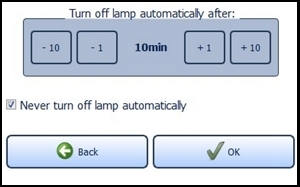
Providing the standby function is not manually deactivated via the check box "Never turn off lamp automatically" located near the bottom of the screen, the lamp will turn off after 10 minutes of non-use (Figure 17). You can change this time span in the menu "Energy service" via the plus and minus buttons. The settings are confirmed with the "OK" button and rejected with the "Back" button. In both cases you will return to the settings menu.
Figure 17: Energy management
If the configured time expires, a request appears for 10 seconds asking if you wish to prevent shut down. The LED lamp turns off automatically afterwards.
7.7 Service Menu
Authorization is required to access the service menu. Only authorized personnel can access the service menu.
8 Error Messages
The BF-RhodoLED® has an integrated monitoring function. In the event of a malfunction, an error message will appear in the message display. Possible error messages are set out in the table below.
| Error message | Possible causes | Measures |
| Lamp overheated! | - The temperature of the surrounding environment is too high.
- The ventilators or ventilator slots are blocked.
- The air inlets or outlets are adversely affected.
| Wait until the standard temperature has been reached.
Check the ventilator and test the air inlets and outlets. Remove any visible foreign objects which may be present.
In case of continuing impairment of cooling please contact your local sales representative or Biofrontera. |
Lamp error!
Please inform your supplier. | - Some of the LEDs have failed.
| Further treatments may be carried out. However, please contact your local sales representative or Biofrontera immediately. |
| Communication error! | - Cable break in the touchscreen monitor spiral cord.
- Poor contact between the touchscreen monitor connection plug and the conduit box.
| Confirm the communication error. Treatments can be continued in the treatment menu by pressing the "Start" button.
Please contact your local sales representative or Biofrontera. |
| Lamp not calibrated! | - The lamp is not calibrated.
- Improper calibration.
| The lamp has to be calibrated. Please contact your local sales representative or Biofrontera immediately. |
| Fehler-Nr.: 0084 Please inform your supplier. | - A temperature sensor has failed.
| The lamp head has to be repaired. Please contact your local sales representative or Biofrontera. |
Firmware of light head is faulty or missing!
Please inform your supplier. | - An Update of the firmware has to be performed.
| An update of the firmware has to be performed. Please contact your local sales representative or Biofrontera. |
If your LED lamp no longer functions properly for some unknown reason, proceed as follows:
- Unplug the power supply for half a minute and then plug back into the outlet (This action prompts a software reboot).
- Turn the lamp back on using the touchscreen monitor and verify functionality.
Should the problem persist, please contact your sales representative or Biofrontera. The lamp may not be used until the problem has been rectified.
For all other malfunctions and difficulties with operation please contact your sales representative or Biofrontera. You will find the contact details on page 2.
9 Servicing
Servicing may only be performed by Biofrontera-authorized personnel. If servicing is done by third parties, BF-RhodoLED warranty is void and Biofrontera cannot be held responsible for potential malfunctions or damages of the device.
During service, the gas springs (gas pressure springs and gas traction springs) in the scissor arm as well as the general safety condition of the BF-RhodoLED® are checked.
Contact your sales representative or Biofrontera to schedule all service appointments.
10 Maintenance and Cleaning
The device may under no circumstances be cleaned with aggressive cleaning agents or solvents (e.g. acetone), as these promote wear and tear of the surface (paint coating), safety signs and graduated scale bar as well as the logo. Please avoid allowing any penetration of liquids into the lamp, BF-RhodoLED® is not waterproof and the electronics inside may be damaged.
Always unplug the lamp prior to cleaning and please observe the following cleaning practices:
| Daily: | Wipe the plexiglass screen located on the bottom of the lamp head with a damp soft cloth (e. g. a microfiber cloth). |
| Weekly: | Wipe the entire lamp with a soft, dry or damp cloth. Do not use a very wet or dripping cleaning cloth. The unit is not waterproof and damage could occur. |
| Please observe the following checks: |
| Monthly: | Check lamp for obvious visible damage such as damaged cables, worn off labeling, cracks on the lamp housing, etc. |
11 Disposal Instructions
Follow all local and governmental disposal laws and regulations when disposing of the BF-RhodoLED®.
12 Technical Data
12.1 Electrical connectors
Power supply unit: